
Parent Guide: Creating Your PowerSchool Parent Account

Follow the steps below to create your PowerSchool Parent Account and link your student(s).

1 Open the PowerSchool Portal
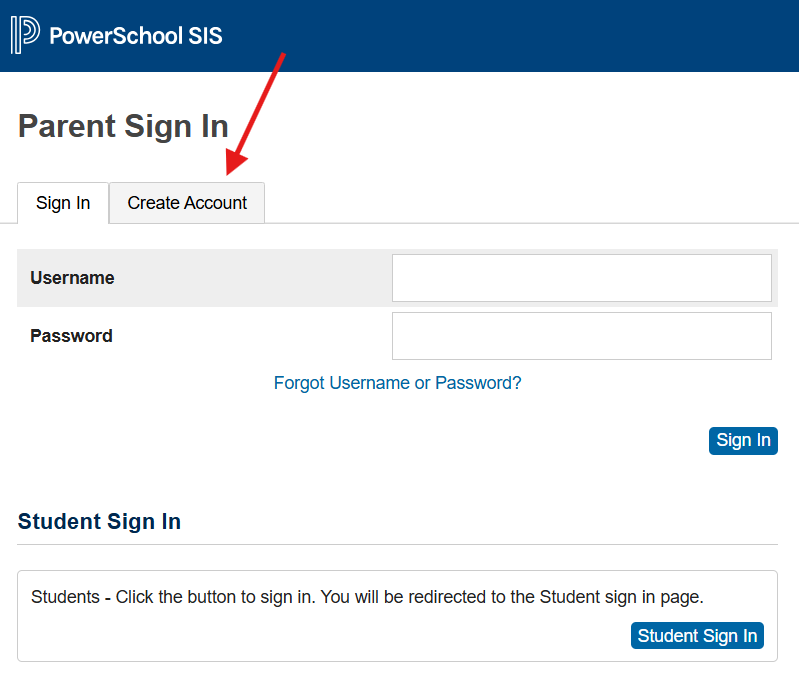
  1. Open the internet browser on your computer.
  2. Type https://isava.guardian.powerschool.com into the address bar.
  3. In the Sign In page, click the Create Account tab, then click the Create Account button.
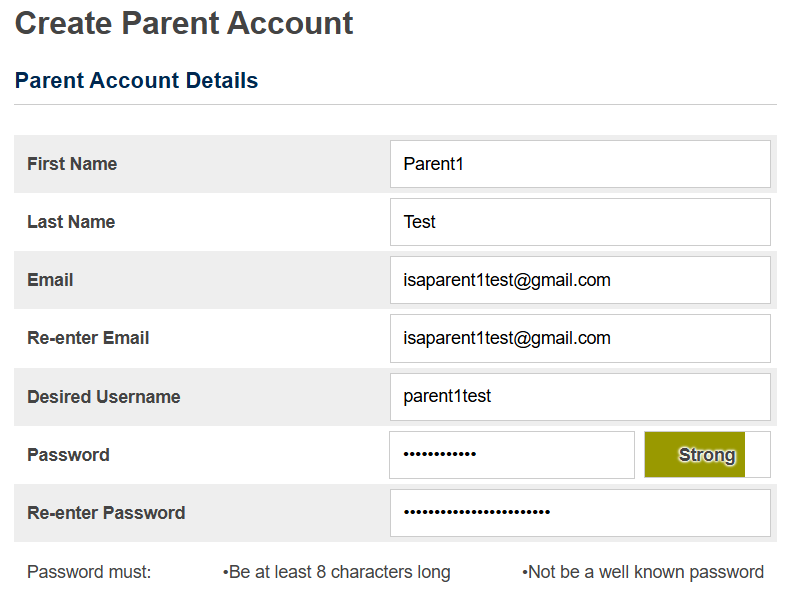
2 Fill Parent Account Details
  1. On the Create Parent Account page, enter your first name, last name, email address, desired username, and password in the corresponding fields.
  2. Pro tip: be sure to use the email that’s on file with the school.
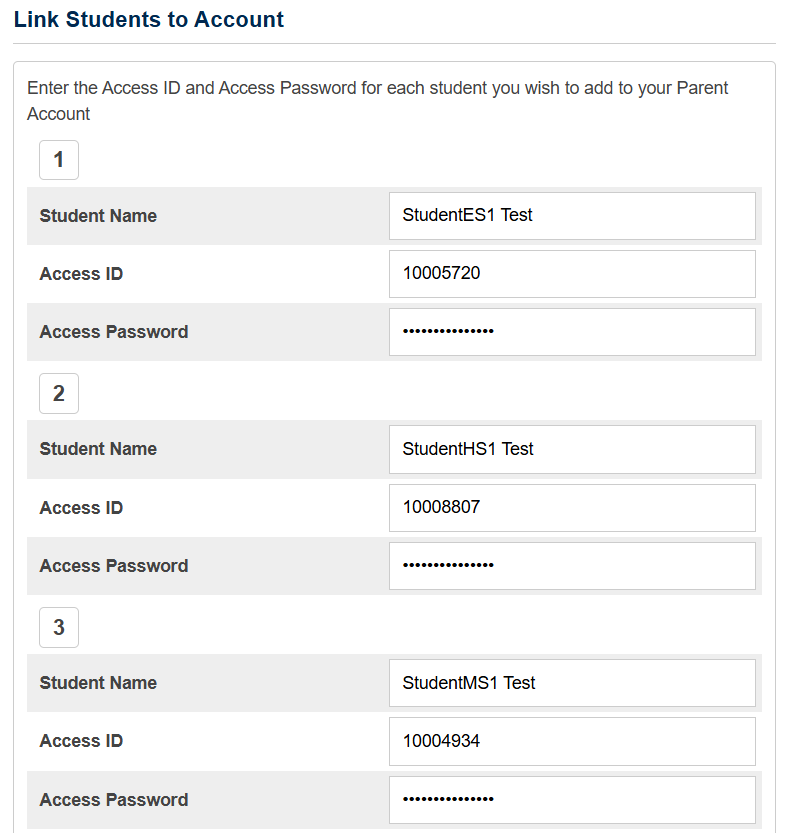
3 Link Student(s) to Your Account
  1. In the block labeled 1, enter your student’s name.
  2. For Access ID and Access Password, enter the values from the invitation letter sent home for the student.
  3. The student name you enter here is not used by the system. Instead, it finds the student based on the Access ID. The Access Password confirms you should have parent/guardian access for that student.
  4. Note: If you have multiple students enrolling in the same year, repeat the process in block 2 (and onward). Each student will have a different Access ID and Access Password from their invitation letter.
  5. You must enter at least one student to create a parent account.
4 Complete Account Creation + Email Verification
  1. If there are any problems, the page will display again with messages about what to do.
  2. If everything is OK, you will see the login page with a message saying your account has been created and you should check your email for a verification link.
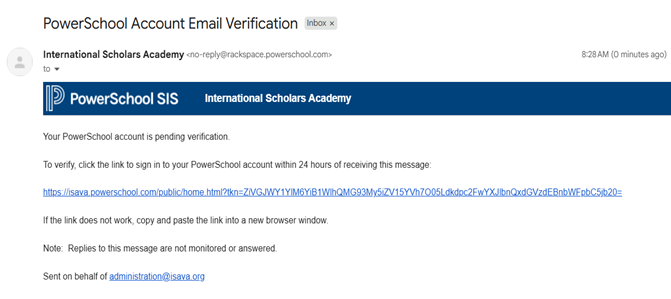
Email verification:
After creating an account, you will not be able to login until you verify your email address. Look for an email with a subject like “PowerSchool Account Email Verification”. If it doesn’t appear quickly, check your Spam folder too. Open the email and click the verification link. You should then see a message like: “Congratulations! Your new PowerSchool account has been verified”.
5 Log In and View Student Information

You should then be able to login to PowerSchool using your created username and password and view information about your students.

Need Help?

If you have any questions, please reach out to our support.