
Schoology Parent Guide

Schoology (/skoo.luh.jee/) is a learning management system (LMS). International Scholars Academy uses Schoology to support blended learning. Teachers post materials online, provide a safe forum for discussion and collaboration, and assign/collect work electronically. Schoology helps students stay organized and connected to teachers and peers.
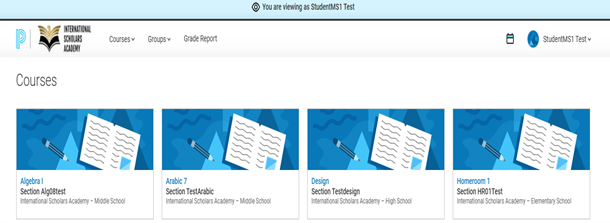
Within Schoology a parent can view:
  • Courses your student is enrolled in
  • Upcoming assignments
  • Grades, school and class announcements

1 Your First Login
  1. You can login to Schoology from PowerSchool or go to the Schoology login page at app.schoology.com.
  2. Since this is your first time logging in, click the “Forgot your password?” link.
  3. Enter your email address (use the email that’s on file with the school).
  4. You will receive a password reset email. Follow the instructions to create a new password.
  5. Return to app.schoology.com and log in using your email and new password.
If you do not receive an email to reset your password, email powerschoolsupport@isava.org or Portalsupport@isava.org with your name, email, and student(s) names.
2 How to Access your child’s courses
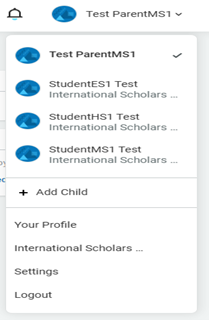
  1. To view your child’s courses, click on your name in the upper right-hand corner. Your child’s name will populate.
  2. Access child courses - Schoology
  3. Choose the child’s name you want to view. Then you will see the current courses, groups, upcoming assignments, and events.
  4. Click on a course to view its content. You can click on any item within the course to view it. Parents have view-only access.
3 How to View Your Child’s Grades

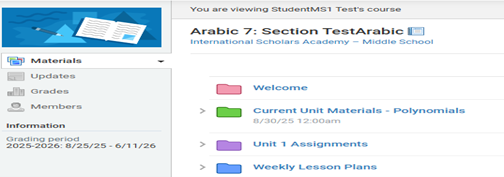
Once inside a Course, click “Grades” to view grades in that course.
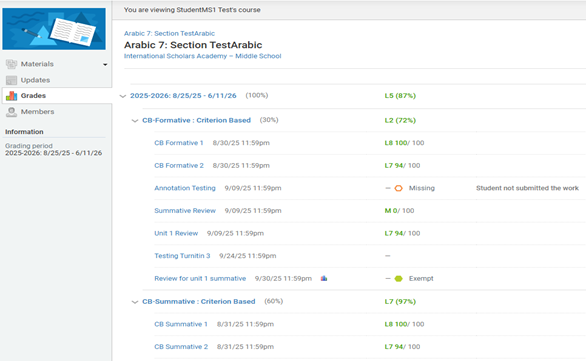
View grades - Schoology
4 How to Message the Teacher in Schoology
  1. Click on your name.
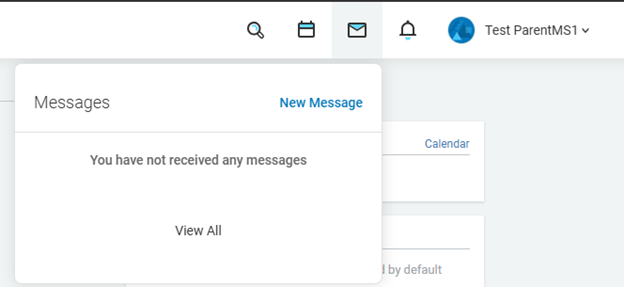
  2. Select the envelope icon and click on New Message.
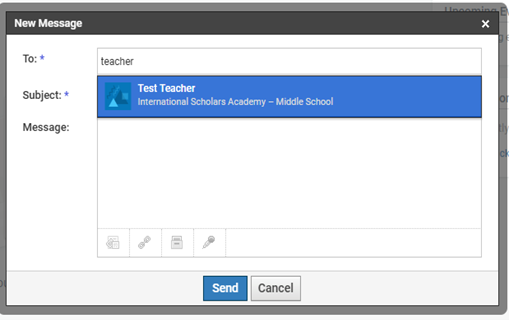
  3. Begin typing the teacher’s name and select it when it appears. Type your message and click Send.
  4. Message teacher - Schoology

Need Help?

If you have any questions, please reach out to our support.