

Schoology Mobile App: Setup and Login Procedure

The Schoology Mobile App is available for Apple (iOS) and Android devices.

1 Download the App
  1. Open the App Store (iOS/Apple) or Google Play Store (Android) on your mobile device.
  2. Search for "Schoology" (it should be the official app from PowerSchool Group LLC).
  3. Download and install the app.
2 Locate Your School/Organization
  1. Open the Schoology Mobile App.
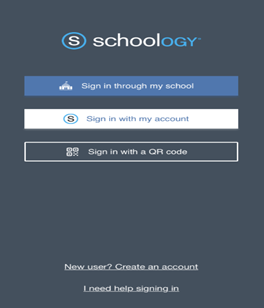
  2. On the initial screen, you will be prompted to find your school. Tap “Sign in through my school”.
  3. In the search bar, start typing the name of the school (e.g., isava or International Scholars Academy).
  4. As you type, a list of matching schools will appear. Tap the full name of our school when it appears in the list.
Tip: If you don’t see it quickly, try searching isava first.
Sign in through my school and search screen
Tap Sign in through my school, then search and select the school.
3 Log In to Your Parent Account

The app will now direct you to the login screen for our school's Schoology system. Click “Stay Here”.
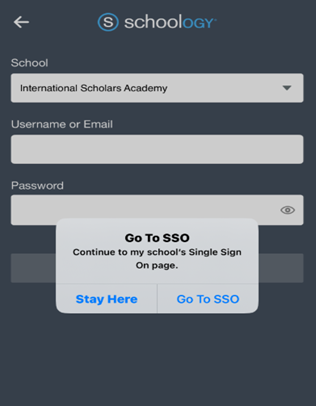
  1. Enter the Email Address or Username that you used when you created your parent account on the Schoology website.
  2. Enter the Password you created for your parent account.
  3. Tap Log In.
Schoology login screen - Stay Here
When redirected, click Stay Here, then log in.
4 View Your Child's Activity

Once logged in, the app will typically show your Parent Home feed. To see your child's information:

  1. Tap the menu icon (often three horizontal lines) in the top-left corner of the screen.
  2. Tap on the “My Children” section.
  3. Select the name of your child from the list to switch to the student view.

Need Help?

If you have any questions, please reach out to our support.