

PowerSchool Mobile App: Setup and Login Procedure

The PowerSchool Mobile App is available for Apple (iOS) and Android devices and requires a District Code to connect to our school's server.
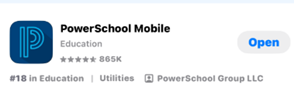

1 Download the App
  1. Open the App Store (iOS/Apple) or Google Play Store (Android) on your mobile device.
  2. Search for "PowerSchool" (it should be the official app from PowerSchool Group LLC).
  3. Download and install the app.
Tip: If you see multiple results, choose the official app: PowerSchool Mobile.
PowerSchool Mobile app listing
Example: PowerSchool Mobile app listing.
2 Locate Your District Code

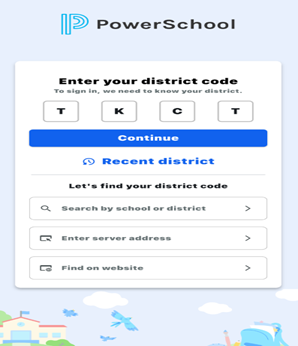
The District Code is T K C T that tells the app which school server to connect to.

3 Connect and Log In
  1. Open the PowerSchool Mobile App on your device.
  2. When prompted, enter the four-character District Code and click Continue.
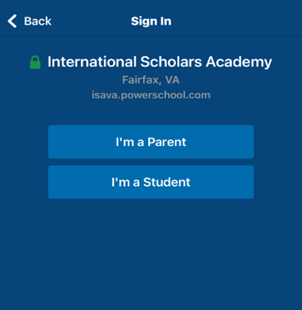
  3. The app will connect to our school's sign-in screen — click I’m a Parent.
  4. Enter your PowerSchool Parent Portal Username and Password.
  5. Tap Sign In.

You should now be logged into the PowerSchool Mobile App, where you can view your student’s grades, attendance, and alerts.
Troubleshooting
  • Invalid Username or Password: login is case-sensitive. Enter credentials exactly as on the web portal.
  • Unable to Connect: re-check the District Code (must be correct).
Enter district code screen
Enter the District Code: TKCT and tap Continue.
Sign-in screen I'm a Parent
Choose I’m a Parent on the sign-in screen.

Need Help?

If you have any questions, please reach out to our support.