

Technology Resources for parents



MyPowerHub
(PowerSchool)
View final grades, GPA, attendance & enrollment forms


Need help? powerschoolsupport@isava.org or portalsupport@isava.org
MyPowerHub (PowerSchool)
MyPowerHub is the centralized portal to view final grades, GPA, attendance, grades, and Enrollment Forms. It is easy to use and supports multilingual parents by letting them choose their preferred language, like Arabic, to see the portal in their language.
MyPowerHub (PowerSchool) Parent Portal Login Guide
Follow the steps below to log in to your PowerSchool Parent Account
1. Check Your Email
Every parent will receive an automated email from International Scholars Academy. As shown in the image below of the test parent, this email contains your unique login credentials:
-
Login Page URL: isava.guardian.powerschool.com
-
Your Username: (Found in your specific email)
-
Temporary Password: (Found in your specific email)

2. Initial login
Navigate to the login page provided in the email. Enter your assigned username and the temporary password exactly as they appear.
3. change your password
When you log in for the first time, the system will automatically prompt you to change your password.
-
Choose a secure password that you will remember.
-
Once updated, you will use this new password for all future logins.
Need Assistance? If you do not receive the email, have trouble logging in, or need further assistance, please reply directly to the notification email or contact us at powerschoolsupport@isava.org.
MyPowerHub (PowerSchool) Parent Guide
PowerSchool is the centralized portal for all school updates including attendance, grades, announcements, and report cards designed to keep families informed.
1 Access the PowerSchool Portal
Login into your account using the link: https://isava.guardian.powerschool.com
2 Log In or Create an Account
You have already created a PowerSchool account?
If YES: Log into your account and move to Step 3.
If NO: Open the tab "login guide", and follow the steps to set up your account.
3 Navigating the Dashboard
Part 1
When you log in, you'll land on the PowerSchool dashboard. This is your main overview page, where you can see attendance, grades, and more. You will find your student's name appears in the top-left corner. If you have multiple students linked, an arrow lets you easily switch between their accounts.
Part 2: How to Change Language to Arabic
-
Click on your initials or profile picture in the top right corner.
-
From the dropdown menu, select Language & locale settings.
-
Choose your desired language, such as Arabic.


4 Logging into Schoology – Learning Management System
-
Click Resource Links (rocket icon at the bottom of the navigation menu) and select Schoology.
-
Clicking Schoology from resource link will take you to the Schoology login page.
-
Since this is your first time logging in, click the “Forgot your password?”
-
Enter your email address: Use the email that’s on file with the school.
-
You will receive a password reset email in your inbox. Check your email and follow the instructions provided to create a new password to login to Schoology

5 Adjust Your Notifications
-
From the PowerSchool screen click your account Initials in the top right corner, in the small drop down screen select Communications preferences.
-
Be sure to select each person's name at the top of the screen to adjust Communication Preferences for each person.
-
As you work through each person, work through the following options: a. What info you want to receive via email (Calendar, Newsfeed, PowerSchool Messaging) b. What do you want summarized in email
-
All selections are automatically saved. When finished making selections, click the left point arrow in the top left of the screen to return to the previous screen.
6 Using the PowerSchool Mobile App
-
Search for the PowerSchool Mobile App on Apple App Store or Google Play Store.
Enter the code for International Scholars Academy: District Code TKCT.
PowerSchool Mobile App: Setup and Login Procedure
Using the Powerschool Apps to stay connected. The PowerSchool Mobile App is available for Apple (iOS) and Android devices and requires a District Code to connect to our school's server. Our School District Code: TKCT
1 Download the App
-
Open the App Store (iOS/Apple) or Google Play Store (Android) on your mobile device.
-
Search for "PowerSchool" (it should be the official app from PowerSchool Group LLC).
-
Download and install the app.
Tip: If you see multiple results, choose the official app: PowerSchool Mobile.

2 Locate Your District Code
The District Code is T K C T that tells the app which school server to connect to.
3 Connect and Log In
-
Open the PowerSchool Mobile App on your device.
-
When prompted, enter the four-character District Code (TKCT) and click Continue.
-
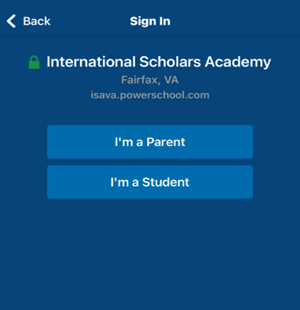
The app will connect to our school's sign-in screen — click I’m a Parent.
-
Enter your PowerSchool Parent Portal Username and Password.
-
Tap Sign In.
You should now be logged into the PowerSchool Mobile App, where you can view your student’s grades, attendance, and alerts.
Troubleshooting
-
Invalid Username or Password: Your login is case-sensitive on the app.
Ensure you are entering your username and password exactly as you created them on the web portal. -
Unable to Connect: Double-check the District Code. If it's incorrect, the app cannot find our school's server.
-
Need Account Credentials? If you have not created an account or need a new Access ID/Password, please contact the Portalsupport@isava.org or powerschoolsupport@isava.org

Video tutorial to set up powerschool parent account
Schoology Learning Management System (LMS): Classroom Hub
Schoology (/skoo.luh.jee/) is the Learning Management System (LMS) we use for blended learning. Teachers use it to post classroom materials, facilitate student discussions, and assign/collect work electronically. Parents can view: Courses, Upcoming assignments, Grades, and Class Announcements.
Schoology Parent Guide
Schoology is a learning management system (LMS). In order to utilize blended learning effectively, International Scholars Academy uses Schoology.
Teachers use Schoology to post their classroom materials online, provide a safe forum for students to discuss their ideas and collaborate on projects, and to assign and collect student work electronically. Schoology helps students stay organized and connected to their teachers and peers.
Within Schoology a parent can view:
-
Courses your student is enrolled in
-
Upcoming assignments
-
Grades, School and class announcements
1. How to Access your child’s courses
-
To view your child’s courses, click on your name in the upper right-hand corner, your child’s name will populate
-
Choose the child’s name you want to view. Then, you will see the current courses, groups, upcoming assignments, and events.
-
Click on a course to view its content. You can click on any item within the course to view it. Please note this is a view only option for parents.


2. How to View Your Child’s Grades
Once inside a Course, click “Grades” to view grades in that course.

3. How to Message the Teacher in Schoology
-
Click on your name.
-
Select the envelope icon and click on New Message.
-
Begin typing the teacher’s name and select it when it appears. Type your message and click Send.


Video tutorial to login to schoology parent account
Schoology Mobile App: Setup and Login Procedure
The Schoology Mobile App is available for Apple (iOS) and Android devices.
1. Download the App
-
Open the App Store (iOS/Apple) or Google Play Store (Android) on your mobile device.
-
Search for "Schoology" (it should be the official app from PowerSchool Group LLC).
-
Download and install the app.
2. Locate Your School/Organization
-
Open the Schoology Mobile App.
-
On the initial screen, you will be prompted to find your school. Tap “Sign in through my school”.
-
In the search bar, start typing the name of the school (e.g., isava or International Scholars Academy).
-
As you type, a list of matching schools will appear. Tap the full name of our school when it appears in the list.
Tip: If you don’t see it quickly, try searching isava first.

3. Log In to Your Parent Account
The app will now direct you to the login screen for our school's Schoology system. Click “Stay Here”.
-
Enter the Email Address or Username that you used when you created your parent account on the Schoology website.
-
Enter the Password you created for your parent account.
-
Tap Log In.

4. View Your Child's Activity
-
Once logged in, the app will typically show your Parent Home feed. To see your child's information:
-
Tap the menu icon (often three horizontal lines) in the top-left corner of the screen.
-
Tap on the “My Children” section.
-
Select the name of your child from the list to switch to the student view.
Schoology Parent Guide
Schoology (/skoo.luh.jee/) is a learning management system (LMS). International Scholars Academy uses Schoology to support blended learning. Teachers post materials online, provide a safe forum for discussion and collaboration, and assign/collect work electronically. Schoology helps students stay organized and connected to teachers and peers.
Within Schoology a parent can view:
-
Courses your student is enrolled in
-
Upcoming assignments
-
Grades, school and class announcements
1 Your First Login
-
You can login to Schoology from PowerSchool or Go to the Schoology login page from our school website or use the direct link app.schoology.com.
-
Since this is your first time logging in, click the “Forgot your password?” link.
-
Enter your email address: Use the email that’s on file with the school.
-
You will receive a password reset email in your inbox. Check your email and follow the instructions provided to create a new password. 5. Once your password is reset, return to app.schoology.com and log in using your email and the new password.
If you do not receive an email to reset your password, email powerschoolsupport@isava.org or Portalsupport@isava.org with your name, email and student(s) names.